
Have you ever experienced that unsettling feeling when, shortly after a private conversation, your phone starts displaying advertisements eerily related to what you just discussed? Many iPhone users report seeing targeted ads from platforms like Google, Instagram, Facebook, and countless other online spaces, sparking concerns about whether their devices are secretly listening. While some might dismiss this as mere coincidence, the reality is far more complex than a simple eavesdropping microphone. Your iPhone, by default settings, can indeed gather information that influences the ads you see, and understanding how to manage these settings is crucial for safeguarding your digital privacy. This comprehensive guide will walk you through the essential steps to gain control over your iPhone’s data collection, ensuring your conversations and browsing habits remain truly private.
The phenomenon of relevant ads appearing post-conversation isn’t just a figment of your imagination; it’s a well-documented aspect of modern digital advertising. While iPhones don’t typically record and send your spoken words to advertisers without explicit permission, various mechanisms contribute to this highly personalized advertising experience. These include app permissions, background data collection, location services, and cross-site tracking, all designed to build a detailed profile of your interests and behaviors. The good news is that Apple has introduced several privacy features over the years, empowering users to restrict how their data is shared. If you’re ready to stop feeling like your phone is always listening and reclaim your privacy, join us as we delve into actionable steps to protect your personal information from unwanted scrutiny.
Reclaim Your Privacy: Comprehensive Guide to Stop Your iPhone From Listening and Tracking You
In an age where personal data is often called the new oil, the privacy of our digital lives has become paramount. Many iPhone users express genuine concern about their devices potentially “listening in” on their conversations, leading to unsettlingly accurate targeted advertisements. This guide aims to demystify the mechanisms behind such advertising and provide clear, actionable steps to enhance your iPhone’s privacy settings. From managing microphone access to preventing cross-site tracking and optimizing location services, we cover essential configurations within your iPhone’s settings. Beyond that, we’ll guide you through specific privacy adjustments for popular social media and e-commerce applications like Facebook, Instagram, X (formerly Twitter), and Amazon, giving you a holistic approach to securing your digital footprint. Take control of your data and ensure your iPhone truly respects your privacy.
RELATED: How to Remove Wax Buildup from Earphones or Earbuds
Understanding how your iPhone and its various applications collect and utilize your data is the first step towards better privacy. Many of these data collection processes, while often justified by companies as necessary for “improving user experience” or “providing relevant content,” can feel intrusive and lead to significant battery drain. By following the detailed instructions provided in this article, you’ll learn to identify and disable settings that compromise your privacy and consume valuable battery life without your explicit knowledge or consent. This tutorial is inspired by expert insights from sources like Payette Forward, ensuring you receive practical and effective advice for locking down your device.
Essential iPhone Settings to Enhance Your Privacy and Stop Unwanted Tracking
Step 1: Scrutinize and Manage Microphone Access for All Apps
Many apps request access to your iPhone’s microphone, often for legitimate reasons such as voice recording, video calls, or voice-activated features. However, some apps may request this access without a clear need, potentially using it for background data collection. To review and adjust microphone access, navigate to your iPhone’s Settings, scroll down and tap on Privacy & Security, then select Microphone. Here, you will see a list of all applications that have requested or currently have microphone access. Evaluate each app: if you’re unsure why an app needs microphone access or if you rarely use its voice features, it’s safer to toggle off its permission. Don’t worry, if an app genuinely needs the microphone for a specific function later, it will prompt you to re-enable access, making it easy to grant permission only when necessary. This proactive step significantly reduces the chances of apps potentially listening in on your environment.
Step 2: Fortify Your Browsing Privacy by Preventing Cross-Site Tracking in Safari
Cross-site tracking is a common advertising technique where websites and advertisers use cookies and other data to track your browsing activity across multiple sites. This allows them to build a comprehensive profile of your interests, which is then used to deliver highly targeted ads. To prevent this in Safari, open your iPhone’s Settings, scroll down and tap on Safari, then locate the Privacy & Security section. Here, ensure the toggle for “Prevent Cross-Site Tracking” is turned ON. When enabled, Safari restricts third-party cookies and data from tracking you as you move between different websites, significantly enhancing your browsing anonymity and reducing the effectiveness of intrusive ad campaigns.
Step 3: Extend Cross-Site Tracking Prevention to Chrome and Other Browsers
While Safari is the default browser on iPhones, many users opt for alternatives like Google Chrome. It’s equally important to configure privacy settings within these third-party browsers. For Chrome, the process is slightly different as its settings are typically managed within the app itself rather than directly through iPhone’s main settings. However, the original text seems to imply a setting within iOS for Chrome. Assuming the guidance refers to a general iOS-level setting or a misunderstanding of direct Chrome settings, it’s crucial to check Chrome’s in-app settings. Open Chrome, tap the three dots (More) icon at the bottom right, select Settings, then navigate to Privacy and Security. Look for options like “Block Third-Party Cookies” or “Do Not Track” requests and ensure they are enabled or set to provide maximum privacy. This ensures comprehensive protection regardless of which browser you prefer to use for your daily web activities.
Step 4: Leverage Apple’s App Tracking Transparency Feature
Apple’s App Tracking Transparency (ATT) framework is a groundbreaking privacy feature that gives users unprecedented control over app tracking. This allows you to decide whether apps can track your activity across other companies’ apps and websites for advertising or data sharing purposes. To enable this, go to Settings, tap on Privacy & Security, then select Tracking. Here, you will find the option “Allow Apps to Request to Track.” For optimal privacy, it is highly recommended to toggle this setting OFF. When this is off, apps are automatically prevented from requesting to track you, and any apps that have previously asked for permission will have their tracking permissions revoked. This significantly limits the data advertisers can collect about your activities outside of their specific app, providing a strong barrier against personalized ad profiling.
Step 5: Disable Personalized Ads from Apple
Even Apple itself uses your data to deliver “personalized ads” within its own platforms, such as the App Store, Apple News, and Stocks. While these ads are typically less intrusive than those from third-party networks, you still have the option to opt out. To disable Apple’s personalized ads, go back to your iPhone’s main Settings menu, tap on Privacy & Security, then scroll all the way down and select Apple Advertising. Inside this menu, toggle off the option for “Personalized Ads.” By doing so, Apple will no longer use your personal information, such as your app purchases, music interests, or location data, to serve you targeted advertisements within its services. You will still see ads, but they will be generic rather than tailored specifically to your profile.
Step 6: Optimize Location Services for Privacy and Battery Life
Location services are incredibly useful for navigation, weather apps, and finding nearby businesses. However, constantly allowing apps to access your precise location can be a significant privacy risk and a major drain on your iPhone’s battery. To manage these settings, return to Settings, tap Privacy & Security, then select Location Services. Review the list of apps: for most, it’s best to set their location access to “While Using the App” instead of “Always.” For apps that don’t need your location at all, select “Never.” Additionally, for each app where you grant location access, you’ll see a toggle for “Precise Location.” Unless an app (like a mapping service) absolutely requires pinpoint accuracy, it’s recommended to turn OFF “Precise Location” to provide only a general location, further protecting your specific whereabouts. Scroll further down in Location Services to “System Services” and review these as well, disabling anything you don’t need, like “Location-Based Apple Ads” or “Significant Locations.”
Advanced Privacy: Protecting Your Data Beyond General iPhone Settings
While the iPhone’s core privacy settings provide a robust first line of defense, many popular applications implement their own extensive ad-tracking mechanisms that require specific adjustments within their respective apps. These apps often collect vast amounts of data about your in-app activities, interactions with other users, and even information gleaned from “partners.” Taking the time to configure these individual app settings is crucial for a truly comprehensive privacy strategy.
Step 1: Stop Facebook from Tracking Your Activity
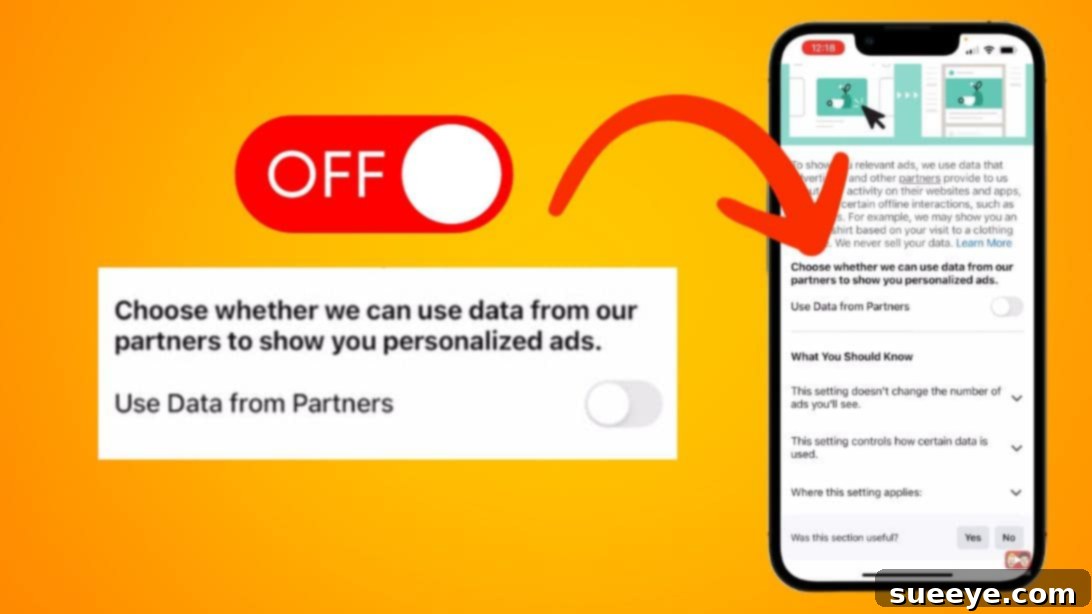
Facebook is notorious for its sophisticated advertising ecosystem. To limit its tracking, open the Facebook app, go to the Menu (three horizontal lines), then scroll down and tap on Settings & Privacy, followed by Settings. In the “Permissions” or “Your Information” section, look for “Ad Preferences.” Tap on “Ad Settings,” then scroll down to “Data about your activity from partners.” Here, you’ll find the option to toggle off “Use data from partners.” This prevents Facebook from using data collected about you by third-party websites and apps to personalize your ads on Facebook, significantly reducing the scope of its targeted advertising.
Step 2: Limit Instagram’s Data Collection for Ads
As part of the Meta (Facebook) family, Instagram employs similar tracking technologies. To adjust its ad privacy, open the Instagram app, go to your Profile, tap the Menu icon (three horizontal lines) in the top right, then select Settings and Privacy. Scroll down and tap on Ads, then Ad Preferences (or “Ad Activity”). Look for “Data from Partners” or similar wording under “Advertiser Topic Preferences” or “Audience-Based Advertising.” Toggle the relevant switch OFF to prevent Instagram from using data shared by advertisers and other partners to show you personalized ads.
Step 3: Control Tracking on Twitter (Now X)
X (formerly Twitter) also uses your activity data to tailor its advertisements. To adjust these settings, open the X app, tap your Profile icon in the top-left corner, then select Settings and Privacy. Tap “Privacy and safety,” then scroll down to “Ad preferences.” Here, you’ll find options related to “Personalized ads” and “Data shared with partners.” Ensure these toggles are OFF to limit how X uses your activity on and off the platform to personalize ads for you.
Step 4: Manage Advertising Preferences on Amazon
Amazon tracks your browsing and purchasing history to suggest products and display interest-based ads. To adjust these preferences, open the Amazon Shopping app, tap the Profile icon (person icon) at the bottom, then navigate to “Your Account.” Scroll down to the “Personalized Content” section and tap on “Advertising preferences” (sometimes found under “App Preferences”). From here, select the option “Do not show me interest-based ads provided by Amazon” and then hit the “Submit” button to save your changes. This will prevent Amazon from using your shopping and browsing data to show you highly specific, interest-based advertisements across its platforms.
How to Stop Your iPhone From Listening to You: A Holistic Approach
The notion of your iPhone “listening to you” is often a simplification of a complex array of data collection methods. While direct, always-on audio recording for advertising is largely a myth (and a significant privacy violation), the combination of microphone access for apps, sophisticated tracking cookies, location data, and third-party data sharing creates an environment where your digital footprint is extensively mapped. By diligently implementing the steps outlined in this guide – managing microphone permissions, preventing cross-site tracking in browsers, leveraging Apple’s App Tracking Transparency, disabling personalized ads, and fine-tuning location services – you significantly reduce the avenues through which your personal data can be harvested.
Moreover, extending these privacy practices to individual high-traffic apps like Facebook, Instagram, X, and Amazon is paramount. These platforms operate with their own intricate data policies, and adjusting their internal ad settings is a critical layer of defense. A proactive and informed approach to your iPhone’s privacy settings is not just about stopping creepy ads; it’s about reclaiming autonomy over your digital identity, ensuring your personal space remains truly personal, and fostering a healthier, more secure relationship with your technology. Stay vigilant, regularly review your settings, and empower yourself with the knowledge to protect your privacy in an increasingly data-driven world.