
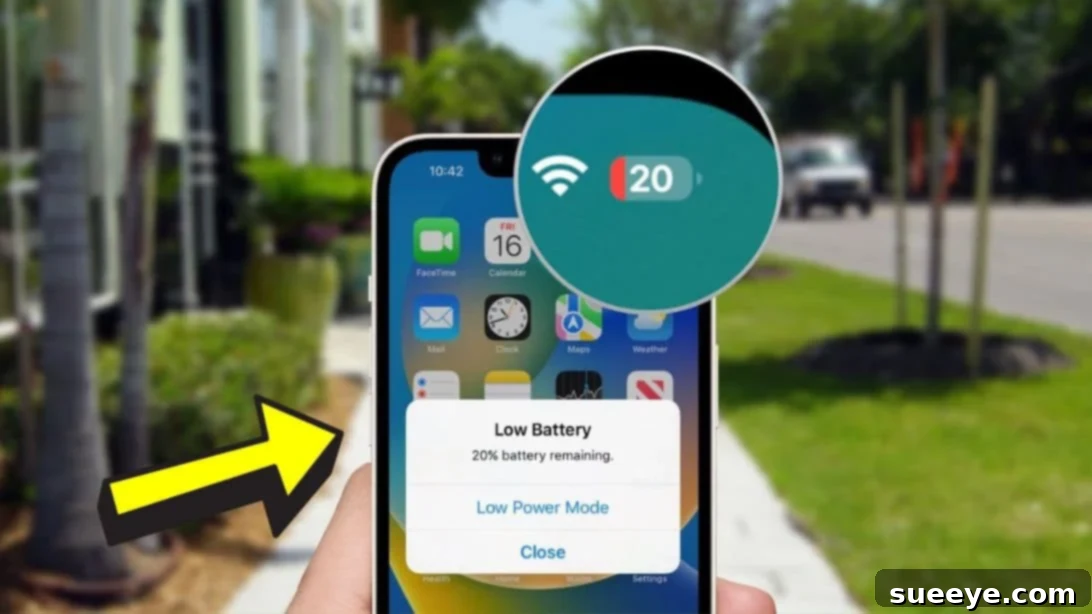
Why Your iPhone Battery Drains So Fast: A Comprehensive Guide to Understanding and Fixing Rapid Battery Depletion
As an avid iPhone user, I know the frustration firsthand: that moment when your phone’s battery icon turns red, seemingly out of nowhere, despite a recent full charge. It’s a common dilemma in our fast-paced, connected world, where an iPhone isn’t just a communication device, but an essential tool for work, social interaction, navigation, and entertainment. Living without it, even for a few hours, can feel like a genuine hardship. Yet, many of us battle with batteries that seem to deplete at an alarming rate, sometimes even when the phone is barely in use.
This persistent issue isn’t just an inconvenience; it can severely impact productivity and peace of mind. I’ve often found myself scrambling for a charger multiple times a day, or worse, having my phone unexpectedly shut down precisely when I needed it most. If you’ve experienced similar frustrations, constantly wondering “why is my iPhone battery dying so fast?”, you’re certainly not alone.
My quest for answers led me to extensive online research, including insightful videos from experts like Apple Explained. Their analysis sheds light on the core reasons behind this widespread problem, offering actionable advice to mitigate rapid battery drain. After delving into their explanations, I gained a much clearer understanding of why my own battery was constantly struggling. If you’re grappling with the same issue, keep reading as we uncover the main culprits and explore effective solutions to reclaim your iPhone’s battery life.
RELATED RESOURCES:
- How to Stop Your iPhone From Listening to You
- How to Fix Your Overheating iPhone
Understanding the Core Reasons for Rapid iPhone Battery Drain
While many factors contribute to battery depletion, some underlying issues are more prevalent and impactful than others. Let’s delve into the primary reasons why your iPhone’s battery might be failing you.
1 – The Inevitable March of Battery Age
At the heart of every modern iPhone lies a sophisticated rechargeable lithium-ion battery. These technological marvels are designed to deliver high performance in a compact form, but they aren’t immortal. Over time, and with each charge cycle, lithium-ion batteries gradually lose their capacity to hold a full charge. This degradation is a natural chemical process. If you’re a heavy user, charging your phone daily, you might notice a significant drop in battery performance after just a couple of years. What once lasted a full day may now barely make it past lunchtime.
This reduced capacity means your phone holds less energy, necessitating more frequent charging and increasing the risk of unexpected shutdowns. Apple designs its batteries to retain 80% of their original capacity after 500 complete charge cycles, but usage patterns vary wildly. When your battery health drops significantly below this threshold, typically shown as a percentage in your iPhone’s settings, it can lead to noticeable performance slowdowns and drastically shorter battery life. The good news is that this problem is solvable: a battery replacement can often breathe new life into an otherwise perfectly functional iPhone, restoring its stamina and improving overall performance.
2 – The Hidden Drain of Weak Cellular Signal Strength
Have you ever noticed your iPhone’s battery plummeting in areas with poor reception, even if you’re not actively using it? This isn’t just your imagination. The number of bars in your status bar directly correlates to how hard your phone is working to maintain a connection. If your iPhone shows only one or two lines, it indicates a weak connection to its cellular network. In an attempt to keep you connected, your phone must constantly amplify its signal, expending significantly more battery power than it would in an area with strong reception.
This constant struggle to find and hold a signal is a silent but substantial battery drainer. Imagine trying to talk to someone across a noisy room – you’d have to shout, expending more energy. Your phone does something similar, boosting its internal radio to compensate for poor network conditions. This intensified effort consumes energy at a much faster rate. While you can’t always control your environment’s signal strength, understanding this phenomenon can help you make informed decisions, such as utilizing Wi-Fi whenever possible or enabling Airplane Mode in areas with notoriously bad reception to conserve power.
3 – The Detrimental Effects of Heat
High temperatures are an iPhone battery’s worst enemy. If you find yourself outdoors on a hot day, perhaps streaming content or navigating with a weak signal, you might notice your battery level dropping precipitously, often accompanied by a dimmed display that refuses to brighten. This isn’t a glitch; it’s your iPhone actively trying to protect itself. When exposed to excessive heat, your phone’s internal components, especially the battery, operate less efficiently and can suffer long-term damage.
To prevent overheating and potential damage, the iPhone employs various protective measures, including reducing screen brightness, slowing down processing, and, most importantly, drawing more power to dissipate heat. This increased power consumption translates directly to faster battery drain. Prolonged exposure to temperatures above 95° F (35° C) can permanently damage the battery’s capacity, leading to irreversible degradation. Conversely, extreme cold can also temporarily reduce battery life, though it’s less damaging long-term. Always try to keep your iPhone within its recommended operating temperatures to preserve battery health and prevent sudden power drops. For more in-depth solutions, refer to our article: How to Fix Your Overheating iPhone.
Beyond the Obvious: Other Major Culprits Behind iPhone Battery Drain
While battery age, signal strength, and heat are critical factors, several other common settings and usage habits can significantly impact your iPhone’s battery performance. Understanding these can empower you to optimize your device for maximum longevity.
4 – Background App Refresh
Many apps on your iPhone constantly update themselves in the background, even when you’re not actively using them. This feature, known as Background App Refresh, allows apps like email clients, social media, and news feeds to fetch new content so it’s ready for you the moment you open them. While convenient, this continuous activity consumes a surprising amount of battery power, especially if you have numerous apps enabled for it.
You can manage Background App Refresh by going to Settings > General > Background App Refresh. Here, you can choose to disable it entirely, allow it only when connected to Wi-Fi, or selectively turn it off for individual apps that you don’t need to be constantly updated. Prioritize essential communication apps and disable it for others to see a noticeable improvement in battery life.
5 – Persistent Location Services
Location Services, while incredibly useful for navigation, weather apps, and finding nearby businesses, can be a major battery hog. Many apps request access to your location, and some may even track it continuously in the background. GPS, Wi-Fi, and cellular network triangulation all require power, and frequent or constant location tracking can drain your battery rapidly.
Review your Location Services settings under Settings > Privacy & Security > Location Services. You can choose to allow location access “Never,” “Ask Next Time Or When I Share,” “While Using the App,” or “Always.” Opt for “While Using the App” or “Ask Next Time” for most applications, and completely disable it for those that don’t genuinely need your location data. Also, check “System Services” within Location Services to disable unnecessary system-level tracking.
6 – Excessive Push Notifications
Every time you receive a notification – a text, an email, a social media alert – your iPhone wakes up, often lighting up the screen and vibrating. While individual notifications consume minimal power, a barrage of them throughout the day can add up, keeping your screen on more frequently and engaging internal components. This constant “waking” of your device prevents it from settling into its low-power idle state.
To mitigate this, navigate to Settings > Notifications and review the notification settings for each app. Disable notifications for apps that don’t require immediate attention. For apps where you want notifications, consider customizing them to show fewer alerts or turn off sound and vibration for less critical ones. This not only saves battery but also reduces digital distractions.
7 – Screen Brightness and Auto-Lock Settings
Your iPhone’s display is one of its most power-hungry components, especially when set to high brightness. The brighter the screen, the more energy it consumes. Similarly, if your screen remains active for a long period before automatically locking (Auto-Lock), it unnecessarily drains power.
Go to Settings > Display & Brightness. Enable “Auto-Brightness” to allow your iPhone to adjust screen brightness based on ambient light, which is generally more efficient. Also, set your “Auto-Lock” time to a shorter duration, such as 30 seconds or 1 minute. These simple adjustments can make a significant difference in your daily battery usage.
Practical Steps to Maximize Your iPhone’s Battery Life
Now that we’ve explored the common culprits, let’s look at actionable strategies you can implement to extend your iPhone’s battery life and ensure it lasts longer throughout your day.
Activate Low Power Mode
Low Power Mode is an essential feature when your battery is running low, or you anticipate a long stretch without access to a charger. It temporarily reduces background activity, visual effects, and disables features like automatic downloads, Mail fetch, and “Hey Siri.” To activate it, go to Settings > Battery > Low Power Mode, or add it to your Control Center for quick access. It automatically turns off once your phone is charged to 80%.
Monitor Battery Usage by App
Your iPhone provides detailed insights into which apps are consuming the most power. Go to Settings > Battery and scroll down to “BATTERY USAGE BY APP.” This section shows the percentage of battery used by each app over the last 24 hours or 10 days. If you notice an app consuming an unusually high amount of power, even when not actively used, it might be a rogue app that needs to be restricted (e.g., by disabling its Background App Refresh or Location Services) or even deleted.
Enable Optimized Battery Charging
Optimized Battery Charging helps reduce battery aging by learning your daily charging routine. It aims to delay charging past 80% until just before you need to use your iPhone. This feature is enabled by default in iOS 13 and later, and you can verify it in Settings > Battery > Battery Health & Charging. It’s a subtle but effective way to prolong your battery’s overall lifespan.
Keep iOS and Apps Updated
Apple regularly releases iOS updates that often include battery performance optimizations and bug fixes. Similarly, app developers frequently update their apps to be more efficient. Running outdated software or apps can lead to inefficient power consumption. Always ensure your iPhone is running the latest iOS version (Settings > General > Software Update) and that your apps are updated (via the App Store).
Utilize Wi-Fi When Available
Connecting to Wi-Fi generally consumes less power than using cellular data, especially for data-intensive tasks like streaming video or downloading files. Whenever a reliable Wi-Fi network is available, switch to it to save battery life.
Manage Widgets
While convenient, some widgets on your Home Screen or Today View constantly refresh data, leading to increased battery consumption. Review your widgets and remove any that you don’t frequently use or that don’t need real-time updates.
Consider Battery Replacement for Aging Batteries
If your iPhone’s battery health has dropped significantly (e.g., below 80% maximum capacity), and you’ve tried all the software optimizations without success, a battery replacement is likely the most effective solution. This service can be performed by Apple or an authorized service provider and can dramatically improve your phone’s performance and battery life. Check your battery health in Settings > Battery > Battery Health & Charging.
Conclusion: Take Control of Your iPhone’s Battery Life
A rapidly draining iPhone battery doesn’t have to be a permanent frustration. By understanding the core reasons behind this common issue – from the natural aging process of lithium-ion batteries and the strain of weak cellular signals to the detrimental effects of heat – you’re already halfway to a solution. Add to that the impact of background app activities, persistent location tracking, excessive notifications, and screen settings, and you have a comprehensive picture of what’s silently depleting your device.
Implementing the practical tips outlined above, such as leveraging Low Power Mode, diligently monitoring app usage, enabling Optimized Battery Charging, and keeping your software up-to-date, can make a substantial difference. Even small adjustments to your habits and settings can cumulatively extend your iPhone’s daily endurance, allowing you to stay connected and productive without the constant worry of a dying battery. Take control of your iPhone’s power management today and enjoy a more reliable and satisfying user experience.